Q-Bot technical specifications

Q-Bot automates LuxTrust two-factor authentication in Luxembourg, as well as other systems internationally. Its electronics, software and interface were designed together, by testers, at Q-Leap, a software testing specialist since 2012.

A format designed for a workstation

Q-Bot fits on the corner of a desk

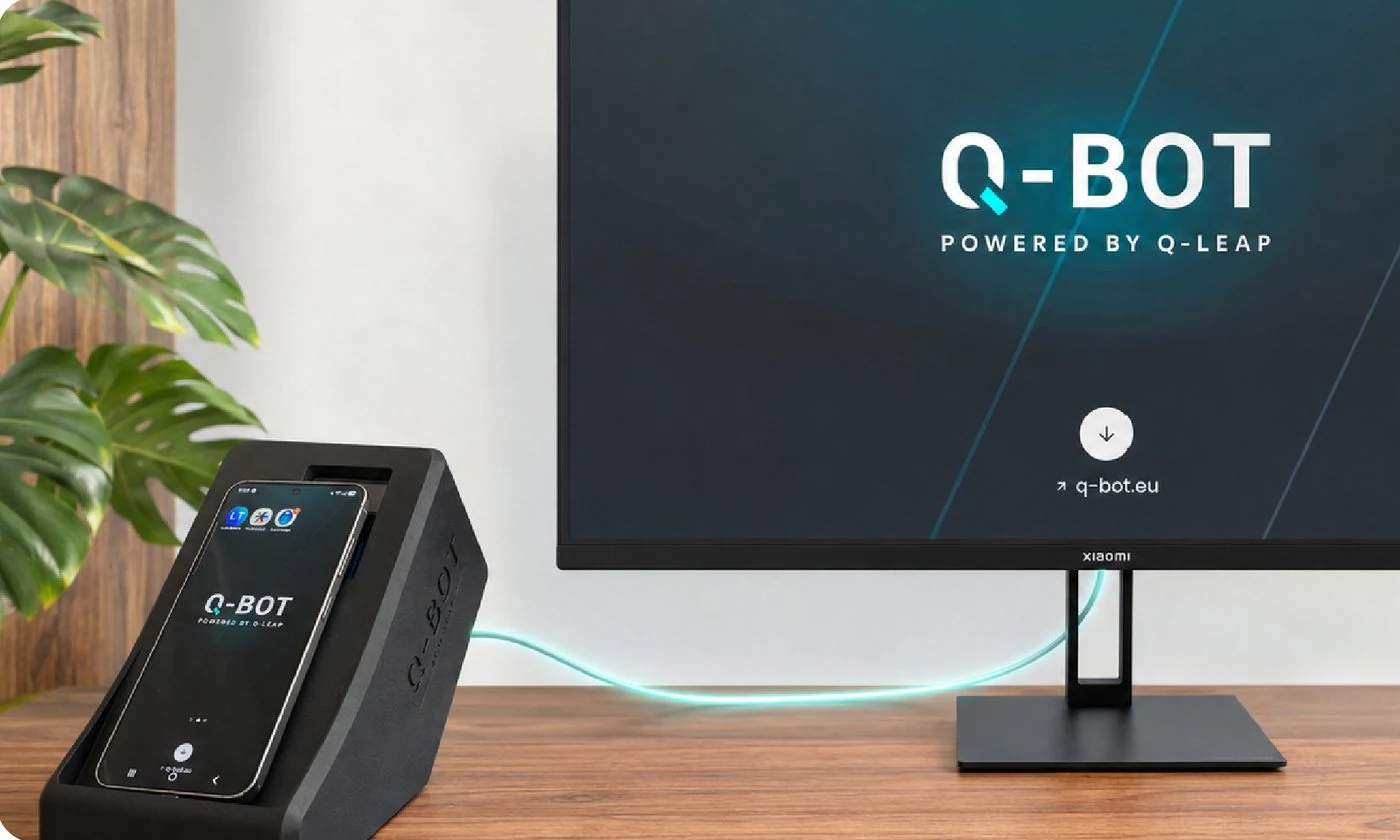
Q-Bot is built to order, in a compact format that sits next to a keyboard. Every module, the device under test included, is integrated into this format, designed for the testers' working environment, without cluttering their desk.

  • Length: 20 cm
  • Width: 11 cm
  • Height: 15 cm
The Q-Bot enclosure on a desk, a smartphone docked in its cradle, the web interface shown on the adjacent screen

The device, line by line

Everything worth checking before plugging Q-Bot into a test pipeline, in six categories.

A nano computer the size of a credit card

The device is a complete, self-hosted computer that sits on the network of your choice. It drives the smartphone over USB and needs no internet connection during test runs.

Hardware

Computer Raspberry Pi 5
Processor Cortex-A76
Memory 4 GB
Network Gigabit Ethernet, Wi-Fi 5 (IEEE 802.11ac), Bluetooth
Phone link USB
OS Raspberry Pi OS Lite
Display Small built-in display, to show a QR code for the phone to scan
Dimensions 20 cm × 11 cm × 15 cm
Manufacturing Made in Luxembourg, at Q-Leap in Bertrange

Smartphone

OS Android
Driven by ADB, over the USB cable
Device Physical, not an emulator or a simulator
Apps The genuine 2FA app, installed on the phone

Interface

Access Web interface, on the local network
Scenarios Visual editor, built on screenshots of the app under test
Storage Local, on the device (SQLite)
Triggering A REST API call, or the companion app installed on the phone

API

Type REST, over HTTP
GET /scenarios/:id/execute Runs a saved scenario on the connected phone.
GET /get-luxtrust-otp Returns the one-time code shown by the LuxTrust app.
POST /display-image Shows a QR code on the device's screen.

Data and network

Operation Local, on the network where you install the device
Screenshots Stored on the device
Cloud No dependency during execution
Internet None required during test runs
Data Test data only
Access control The API expects no key: access is your network's

Deployment

Install Docker containers, brought up with a single Docker Compose command
Lead time 48 to 72 hours after ordering
Support Included, answer within 24 working hours
Replacement A new device in case of failure

Build automation without writing a line of code

The Q-Bot web interface lets any tester create a scenario in minutes. No scripting, no XPath selectors, no brittle element IDs.

  • Upload a screenshot of the target app screen as the step background
  • Place numbered tap points by clicking directly on the screenshot
  • Set wait times to the millisecond, at the app's real pace
  • Add, reorder and remove steps at any time
  • Scenarios are saved and versioned in the Q-Bot backend
  • Step images stored locally on the Q-Bot device, no cloud uploads

The result is a reusable, named scenario: a visual map of what to tap and when, ready to be triggered on demand from any test pipeline.

A web interface and a REST API

Q-Bot is driven from its web interface, or by an HTTP call from your test pipeline. The screens below are the interface shipped with the device, as it is today.

Web interface A screenshot of the 2FA screen, numbered tap points, wait times. No scripting, no selectors to maintain.
REST API Three endpoints, called straight from your test scripts. No SDK and no agent to install.
Companion app Installed on the device under test, it watches for 2FA notifications and triggers the matching scenario the moment one arrives. No call from your test runner needed.
Home page of the Q-Bot web interface: the logo, the line “Automate touch-based test cases on physical mobile devices”, an “Open Scenario Editor” button and four cards describing screenshot-based steps, touch-point actions, scenario execution and the open API.
Scenario editor of the Q-Bot web interface: the “Homescreen” scenario selected, the tool palette (move, tap, delete, wait) and the screen of the phone under test, showing the LuxTrust Mobile, itsme, Google Authenticator and Microsoft Authenticator apps.
Reference for the Q-Bot REST API: the GET /scenarios/:id/execute endpoint with its id parameter and JSON response, followed by GET /get-luxtrust-otp.
The interface home screen, served by the device itself: everything happens in a browser, on your own network, with nothing to install.

One HTTP call. Any pipeline. Any framework.

Every scenario in Q-Bot is accessible via a simple REST API. No SDK, no proprietary plugin, no agent to install in your CI environment.

  • Self-hosted, runs on your local network
  • Works with any pipeline that can make an HTTP call

All use cases

Data and privacy

Q-Bot is designed to respect the privacy and security of your test data.

Nothing leaves your network

Scenarios and their step images stay on the Q-Bot device. No cloud uploads, no data leaving your environment.

Test data only

Q-Bot must be used with test data, not production data. Scenarios created remain on the device.

Local network

Q-Bot runs on your internal network. Communication between Q-Bot and your test tools stays local.

Compatibility

Q-Bot integrates into your existing test pipeline, whatever technology you use.

Authentication apps

  • LuxTrust Mobile
  • Microsoft Authenticator
  • Google Authenticator
  • itsme
  • Any Android 2FA app

Compatible testing tools

  • Selenium
  • Cypress
  • Appium
  • Playwright
  • Robot Framework
  • TestComplete
  • Jenkins CI
  • GitLab CI
  • REST API

See Q-Bot in action